
Get Started with Rack on iPhone
Start here. Set up your preferences, pair your Garmin, and log your first workout, with the connected-vs-offline modes made clear. Includes building supersets. Links out to routines, programs, importing, and the AI connector.
The iPhone app is home base — it’s where you log workouts, keep your routines, and tune everything to your liking. This guide picks up right after onboarding and walks you from a fresh account to your first logged workout, in order. About 7 minutes.
A quick vocabulary note used throughout: a set is one round of an exercise, a rep is one repetition within a set, and a routine is a reusable workout template you can start with one tap.
Find Your Way Around
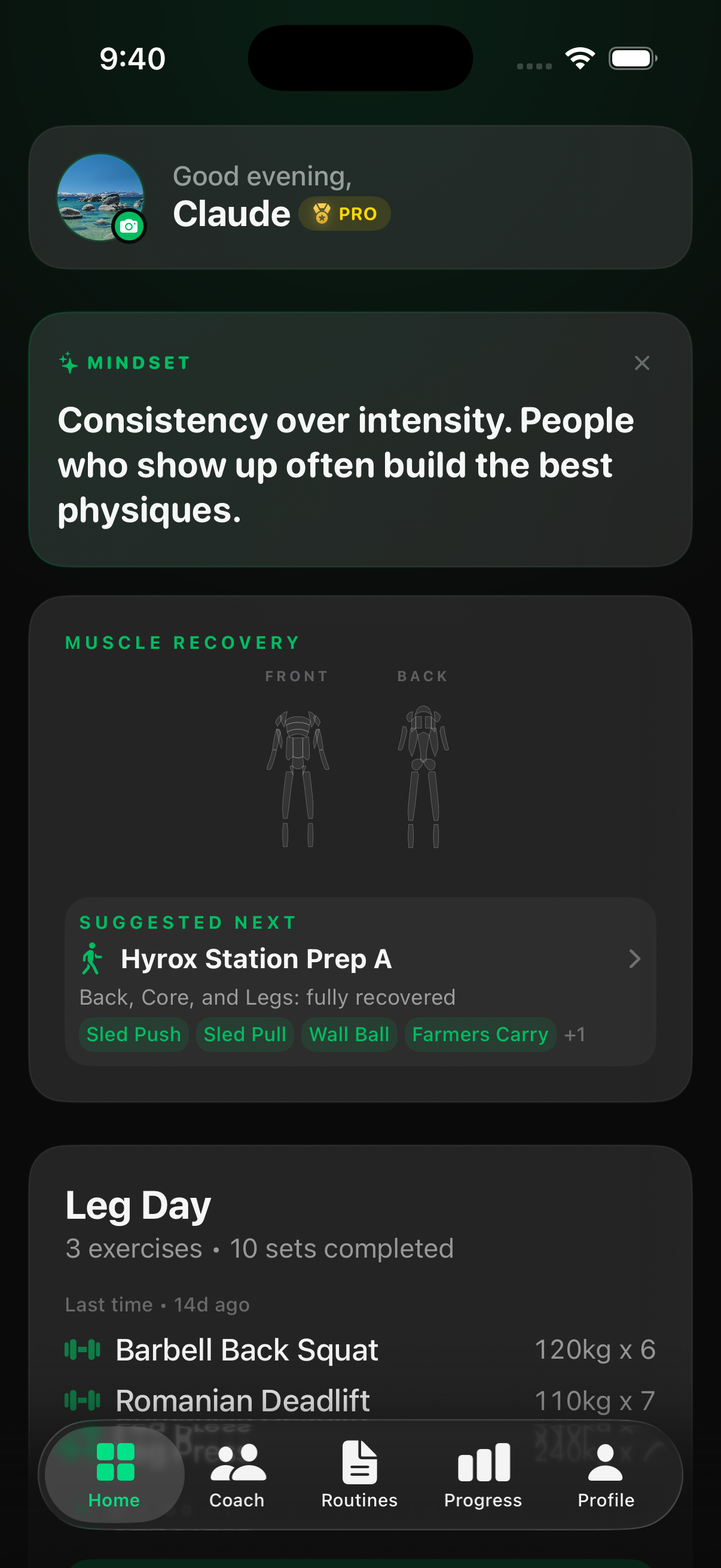
You land on Home. There’s a bottom tab bar with five tabs: Home, Coach(only relevant if a trainer manages your training — solo users can ignore it), Routines, Progress (your history and charts), and Profile. Everything you set up below lives under Profile → Settings.
Get Set Up
Four quick things get Rack working the way you want. None takes more than a minute, and each has its own short guide if you want the detail.
- Tune your preferences. Set your weight unit(kg or lbs) and the rest of your defaults so the whole ecosystem — app, web, and watch — follows them. See Tune Your App to Your Preferences.
- Pair your Garmin(if you train with one). Getting Rack onto your wrist is a two-part setup — the watch app plus the connection. See Pair Your Garmin.
- Turn on the extras. In Settings, flip on Training Intelligence (Rack’s AI coaching — Pro), Apple Health (so workouts write to the Health app), and Garmin Connect (so finished workouts auto-upload to your Garmin activity feed). Each is a single toggle or a quick sign-in.
- Bring your history (optional). Coming from Hevy, Strong, or Fitbod? Import it so your PRs and history come along. See Import From Other Apps.
Your First Workout
Two ways to start. If you just want to lift, tap Log Workout on Home for a freestyle session you fill in as you go — tap Add Exercise, search a movement, and for each set enter the weight and reps and confirm it. The rest timer starts automatically between sets, and you can log RPE(a 1–10 “how hard was that set” rating) or leave it blank. Tap Finishto save — it lands on your Progress tab.
Made a mistake? Tap any set to change its weight or reps, or swipe a setto delete it (you can’t delete the last set of an exercise — swipe the whole exercise to remove that instead). Nothing is written to your history until you tap Finish, so rearrange and redo freely before you save — or tap Discard to throw the session away.
The other way is to start from a routine, so your exercises and targets are already there. Don’t have one yet? Building your first takes a minute — see Create Your First Routine. Once you have one, you can start it from your phone or, if it’s synced, straight from your Garmin — and that works two ways:
Connected
Every set you confirm on your wrist syncs live to your phone, and on to the cloud. Rest timers and your next set stay in step across both.
Offline
Leave your phone in the locker. The watch logs every set on its own, then drains them to your phone with Sync to Phone next time they’re together.
Turn a Past Workout Into a Routine
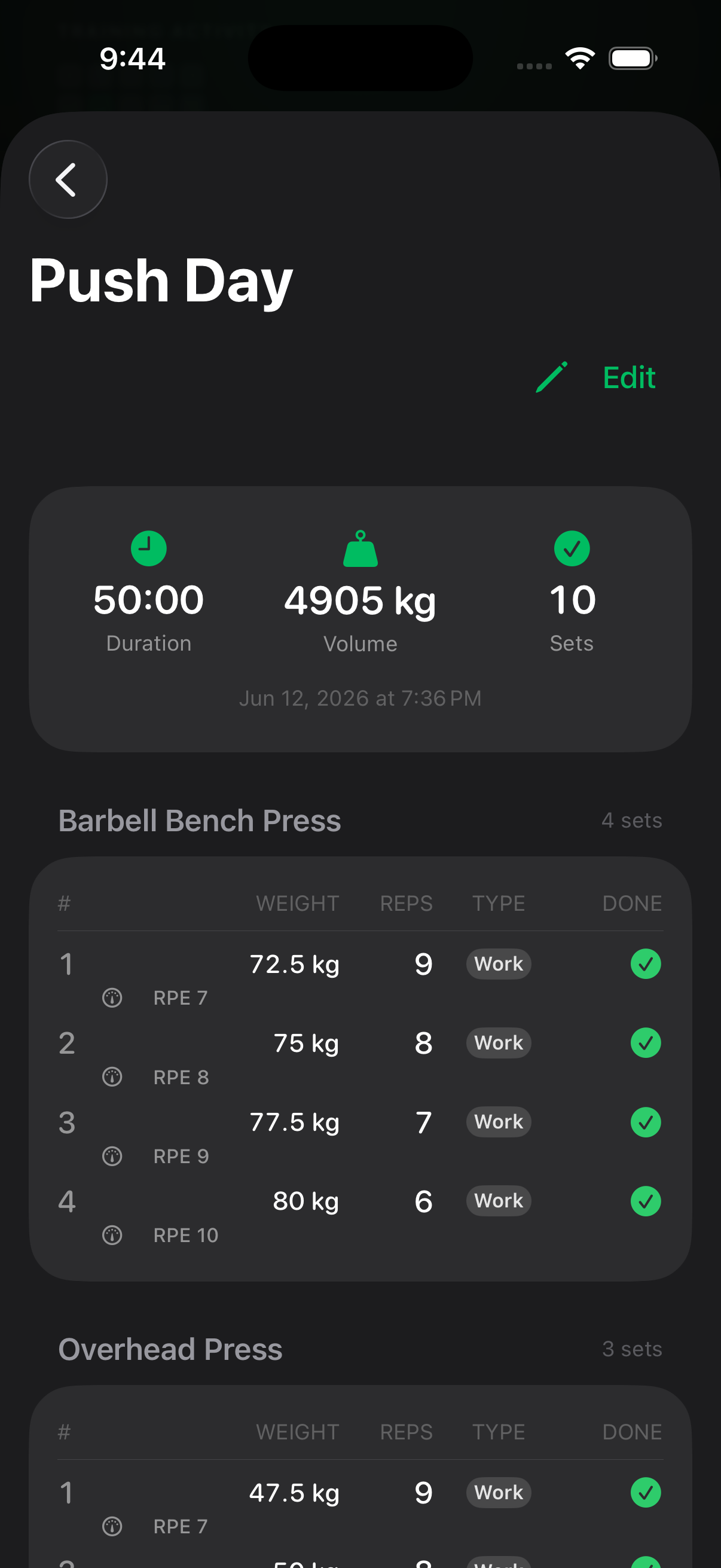
This is the shortcut people hunt for, and it’s a hidden gesture you’d never guess: go to the Progress tab, open the day of a completed workout, and press and hold (long-press) the workout card. Choose “Add to Routines” and Rack turns that session into a reusable routine instantly. It works on imported workouts too, so you can rebuild your routines from real sessions in seconds.
Supersets
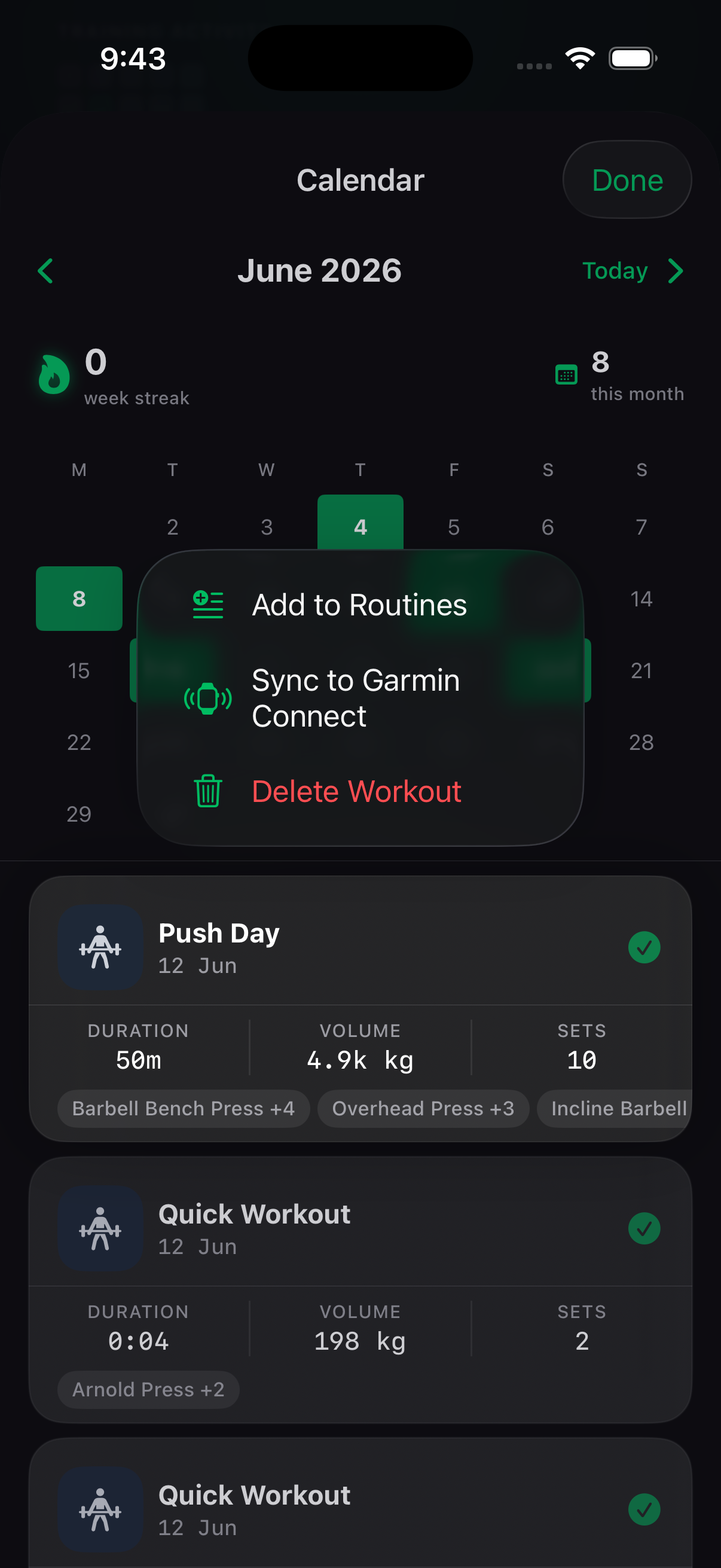
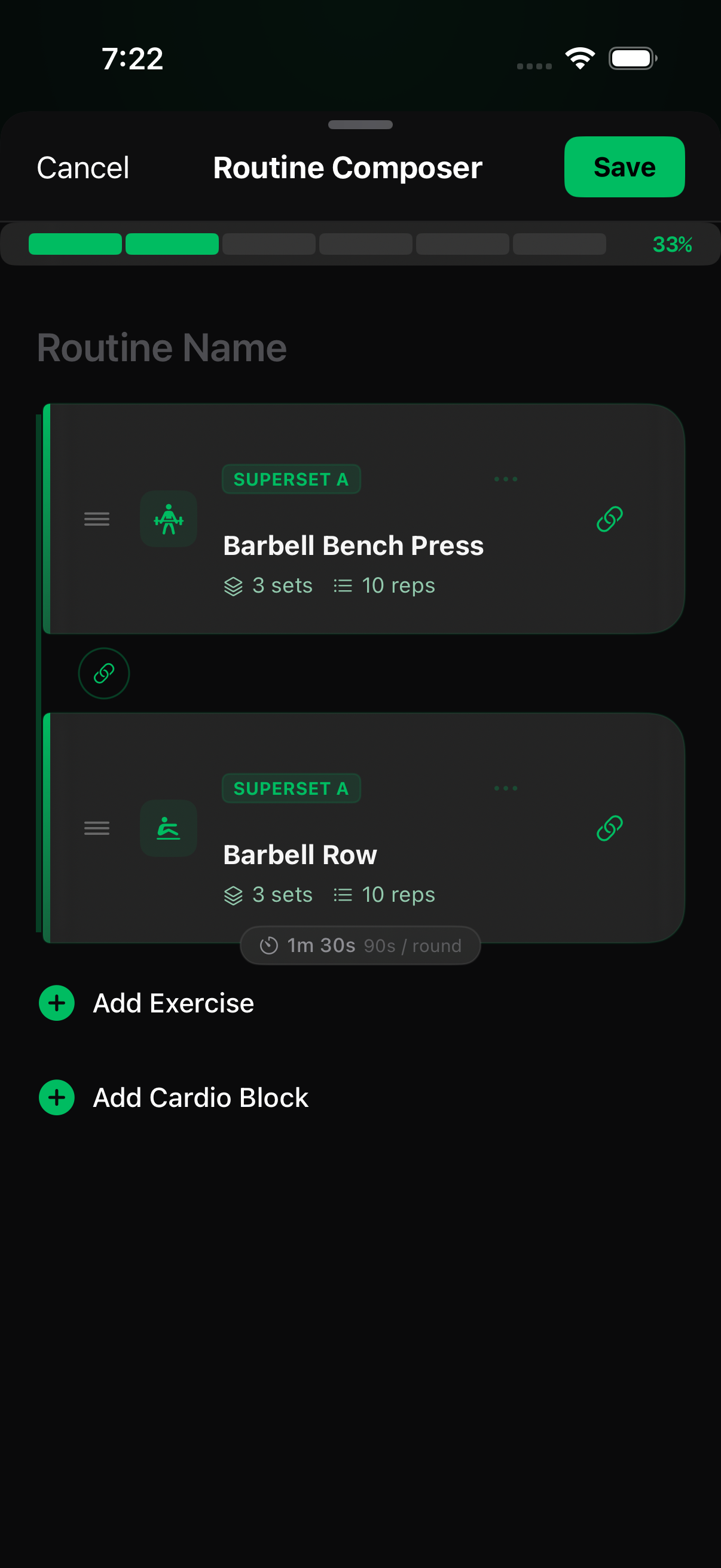
A superset is two exercises done back-to-back with no rest in between. You set one up while building or editing a routine, in the Routine Composer: tap the … button on an exercise card and choose “Link with exercise below”(the option next to the chain icon — on a phone the label wraps onto two lines). That links the card you tapped with the one directly under it.
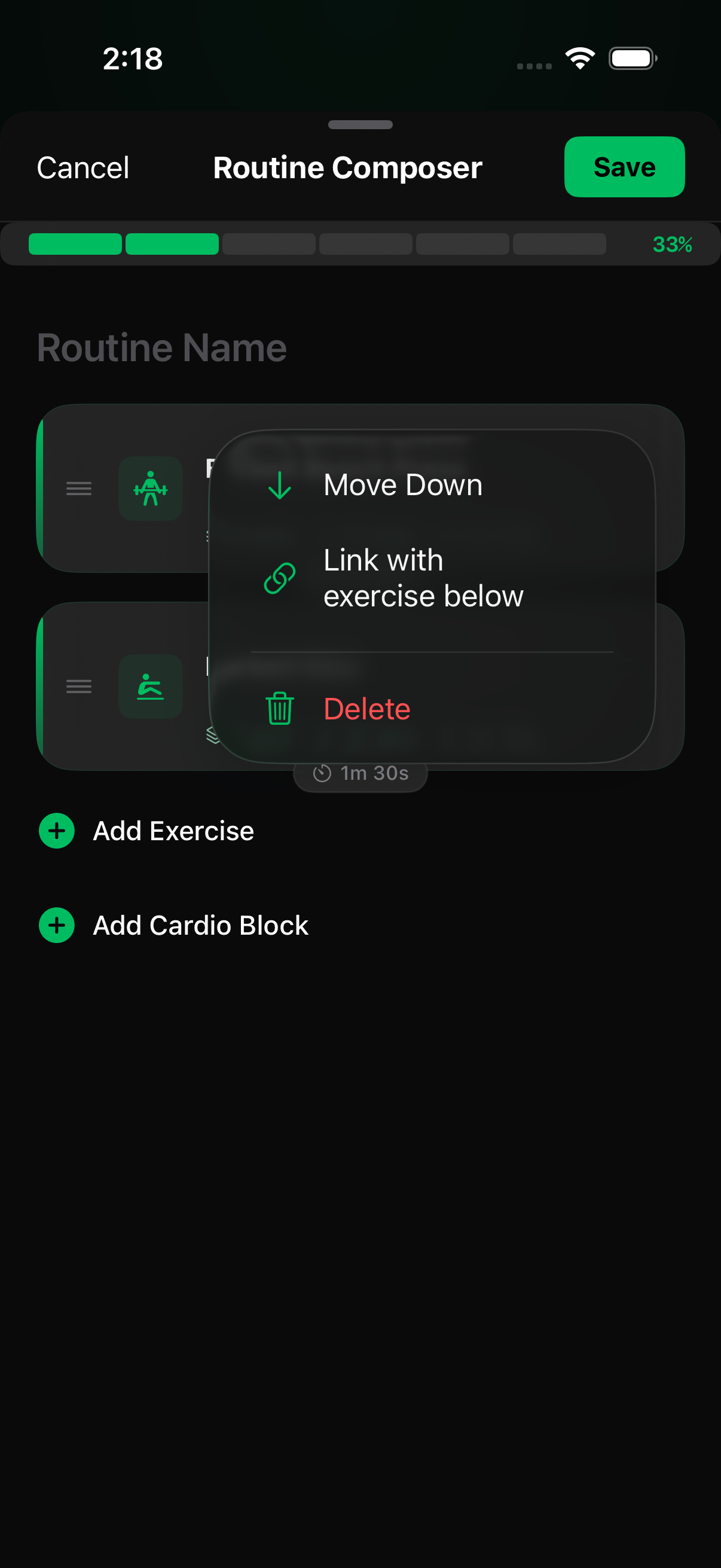
Once linked, both cards carry a green SUPERSET badge and a chain connector joining them, and the pair shares a single rest pill marked “/ round”— that rest is what you take after finishing both exercises, not between them. To add a third exercise to the same superset, link the bottom card of the pair with the exercise below it.
Don’t see the option? It hides itself in exactly two cases, both deliberate:
- You’re on the last exercise in the routine. There is nothing below it to link to. Add another exercise after it, or use Move Up / Move Downto put the two exercises next to each other in the order you want — a superset always links a card with its immediate neighbour below.
- Both exercises are already in a superset.If the card you tapped and the one below it are both part of a superset — whether it’s the same one or two different ones — the option disappears, because Rack won’t merge two existing supersets into one. Linking an exercise that’s already in a superset with a free exercise below it is fine; that just grows the group.
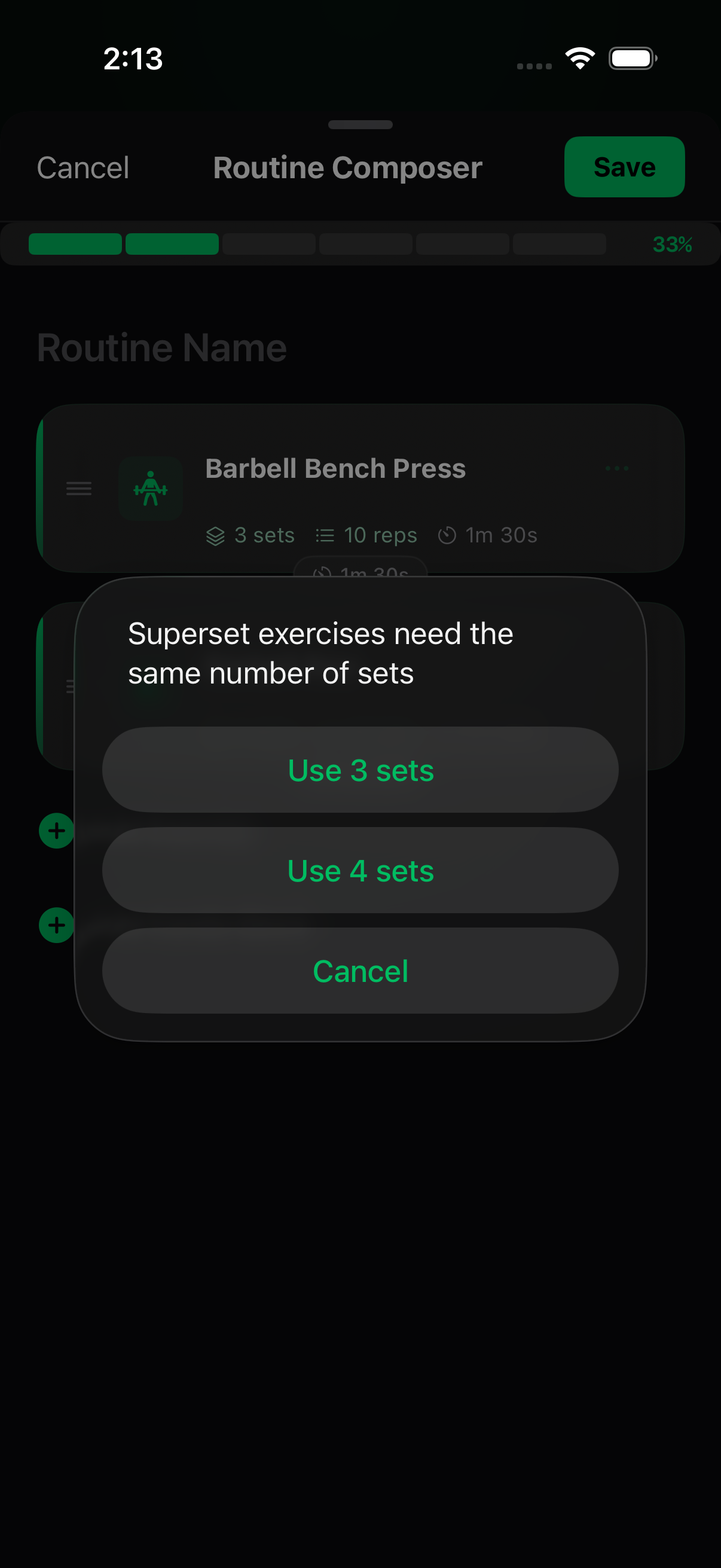
Different set counts are fine.Superset exercises run the same number of sets, so if the two you’re linking don’t match, Rack asks rather than refusing: “Superset exercises need the same number of sets”, with a button for each count. Pick the one you want and the link goes through, with both exercises set to it.
Go Further: Routines and Programs
Once you’re logging, two guides take you the rest of the way: Create Your First Routine covers building a reusable workout from scratch, and Build Your First Program strings your routines into a multi-week plan that Rack schedules and tracks week to week.
Connect an AI Chat (Pro)
Rack plugs into AI assistants — ChatGPT, Claude, or any client that supports MCP— so you can build routines and custom exercises just by asking. It’s a browser setup with its own steps; start at the AI Connector page, and for the full ChatGPT walkthrough see Connect ChatGPT to Rack.
Still Stuck?
Email support@rackstrength.com with your device model and what you were trying to do. We reply fast.