
Pair Your Garmin
The two-part setup to get Rack on your wrist: install the Rack app from the Connect IQ Store, then connect the watch in Settings. Plus optional Garmin Connect auto-upload.
Getting Rack onto your wrist is a two-part setup: the Rack app on the watch, and the connection between the watch and your iPhone. Do both once and your routines sync to the watch, and every set you confirm there flows back to your phone. About 4 minutes.
Before You Start
- Rack works with Garmin watches (Connect IQ), not Apple Watch.
- Install the free Garmin Connectapp on your iPhone and sign in, with your watch already paired to your phone in it. Rack’s pairing rides on that connection.
1. Install Rack on the Watch
In the Connect IQ Store (in the Garmin Connect app, or the standalone Connect IQ app), search “Rack”and install it to your watch. It shows up in your watch’s activity/app list. For what the watch app can do once it’s on, see How to Use Rack on Your Garmin Watch.
2. Connect in the iPhone App
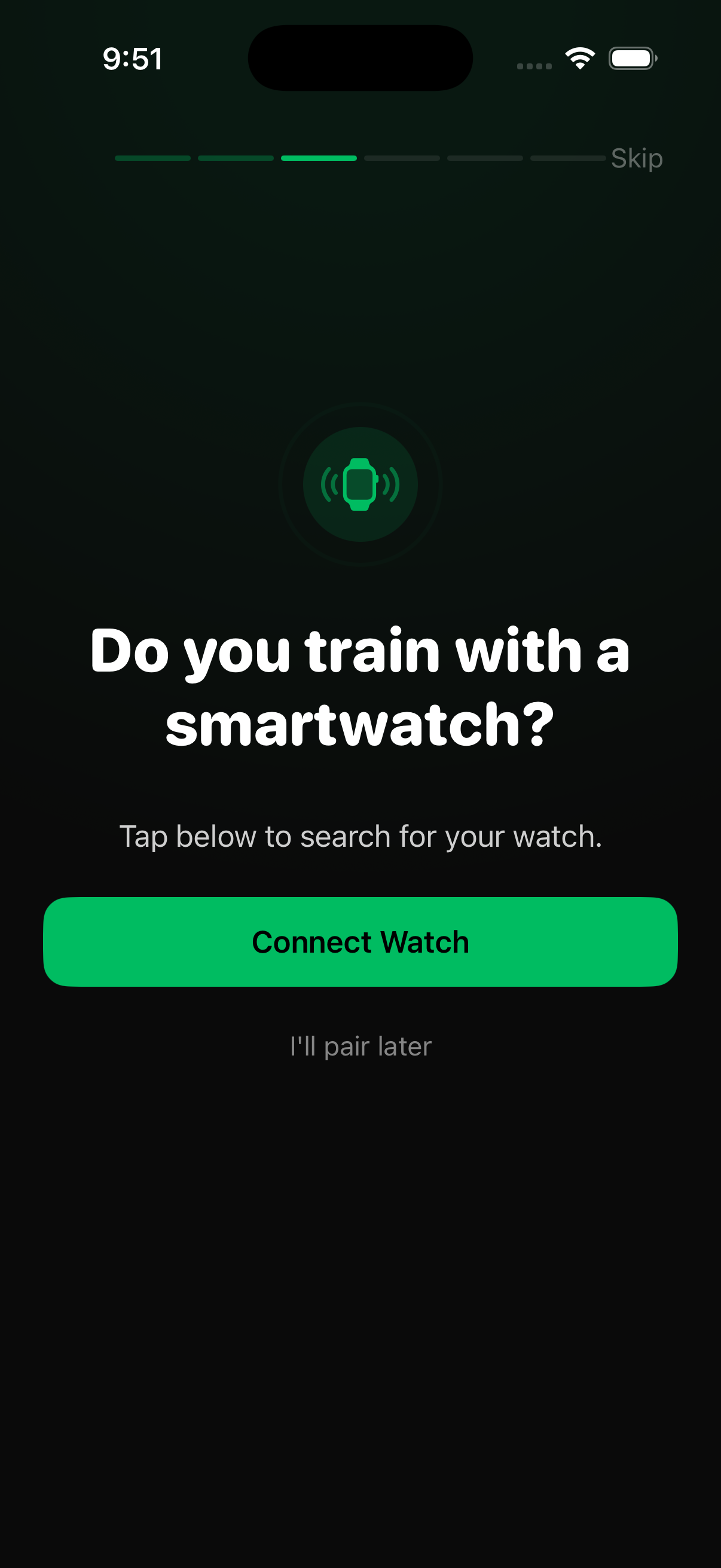
In Rack on your iPhone, go to Profile → Settings → Garmin and tap “Connect Watch” (or “Search for Watch”). Keep the watch within a few feet. The first connection can take 20–30 seconds; once it lands you get live set-sync over Bluetooth and your routines pushed to the watch.
3. (Optional) Auto-Upload to Garmin Connect
Separately from the watch link, you can sign into Garmin Connect from Settings so finished Rack workouts auto-uploadto your Garmin activity feed (great for tracking Training Load alongside your runs and rides). This is an account sign-in, not a watch pairing — the two are independent.
If the Watch Isn’t Found
- Confirm the watch is paired in the Garmin Connect app first.
- Make sure the Rack Connect IQ app is installed on the watch (step 1).
- Keep the watch close and Bluetooth on, then tap Search for Watch again.
Still Stuck?
Email support@rackstrength.comwith your watch model and we’ll help you pair.