
How to Use Rack on Your Garmin Watch
Install via Connect IQ, learn the button mapping, log sets, use rest timers, run supersets, and train fully offline on a Garmin watch. Set routines up on your phone, then confirm every set on your wrist even with no phone nearby.
Rack runs natively on your Garmin through Connect IQ, so you can log lifting straight from your wrist — online or fully offline. Think of the watch as your logging screen and your phone as your library: the phone holds your routines and full history, the watch lets you confirm every set anywhere, then hands them back to the phone.
Before You Start
Rack is a Connect IQ app, so you install it once:
- On your phone, open Garmin Connect and make sure your watch is paired to it.
- Open the Connect IQ Store, search Rack, and tap Download— it syncs to your watch automatically over Bluetooth.
- In the Rack phone app, build at least one routine. That routine is what shows up under Program on the watch. (New to routines? See the Rack iOS App guide.)
You only need the phone to install Rack and to create routines. Once a routine is on the watch, you can log every set on your wrist even with no phone nearby. For the full pairing walkthrough (including connecting the watch to the app and optional Garmin Connect auto-upload), see Pair Your Garmin.
Your Watch’s Buttons
Garmin watches don’t have an “Enter” key — they have physical buttons. Throughout this guide:
- START/STOP (top-right) is your Select / confirm button.
- UP and DOWN (left side) change values and move the highlight or between exercises.
- BACK (bottom-right) steps back one screen.
- Holding UP opens the extra menu (change exercise, skip, end workout).
- LIGHT (top-left) is the backlight/power button — Rack doesn’t use it for logging.
On touchscreen models (Venu, some Forerunners) you can also tap the value and the checkmark.
1. The Main Menu
Open Rack on the watch and you land on the main menu:
- Program — your next routine, synced from the phone.
- Phone Workout — log live with your phone connected over Bluetooth.
- Offline Workouts — routines stored on the watch, for training with no phone.
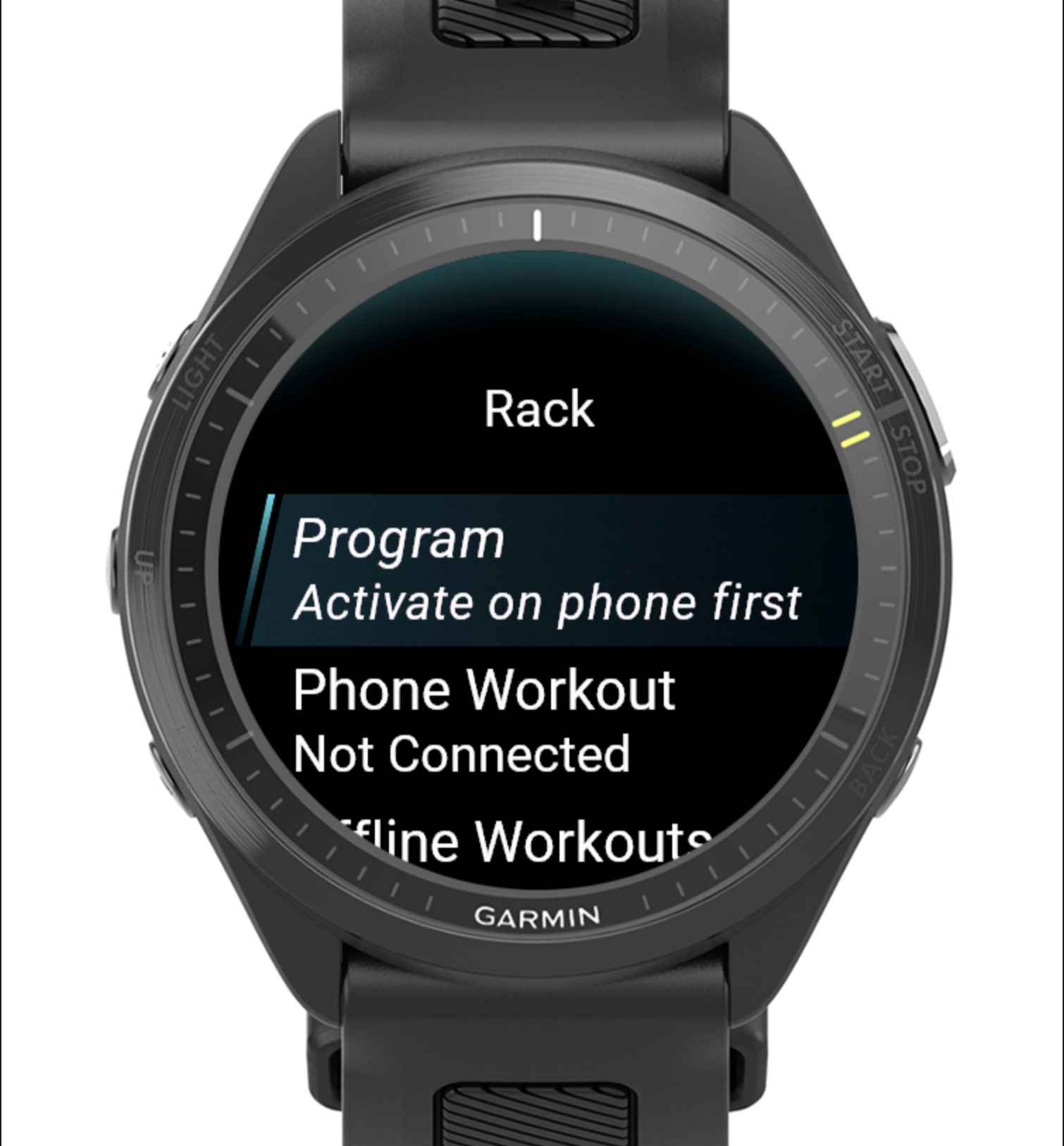
The highlighted item is the one that starts when you press START/STOP. Use UP and DOWN to move the highlight to Program first.
2. Start a Workout
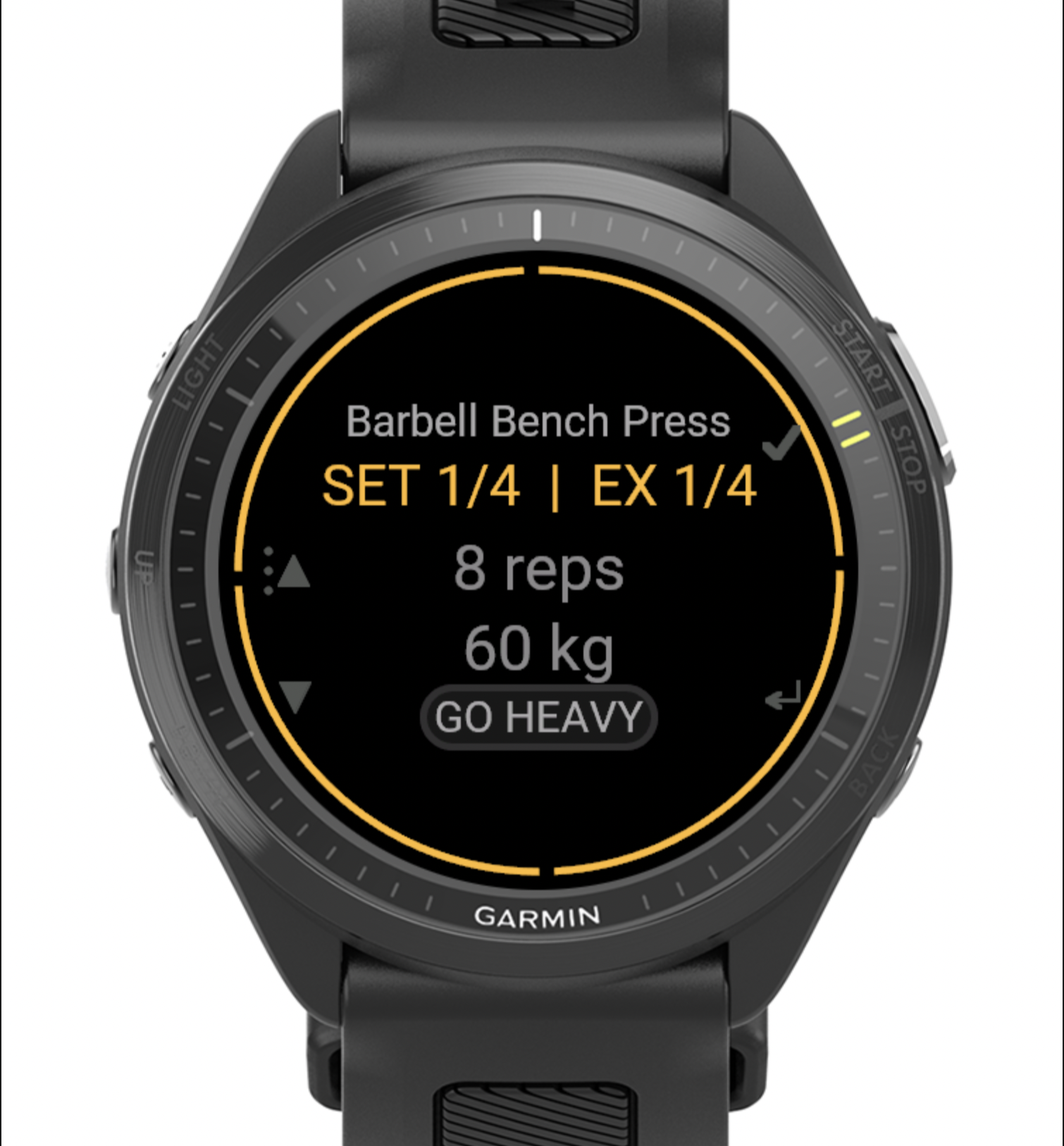
Press START/STOP on Program to begin your synced routine. Out of range or no phone? Choose Offline Workouts → Stored Workouts, pick a routine, and select Start Workout. Either way you land on the exercise view, which shows the movement, SET 1/4 and EX 1/4 (your set and exercise progress), and the target reps and weight.
3. Log a Set
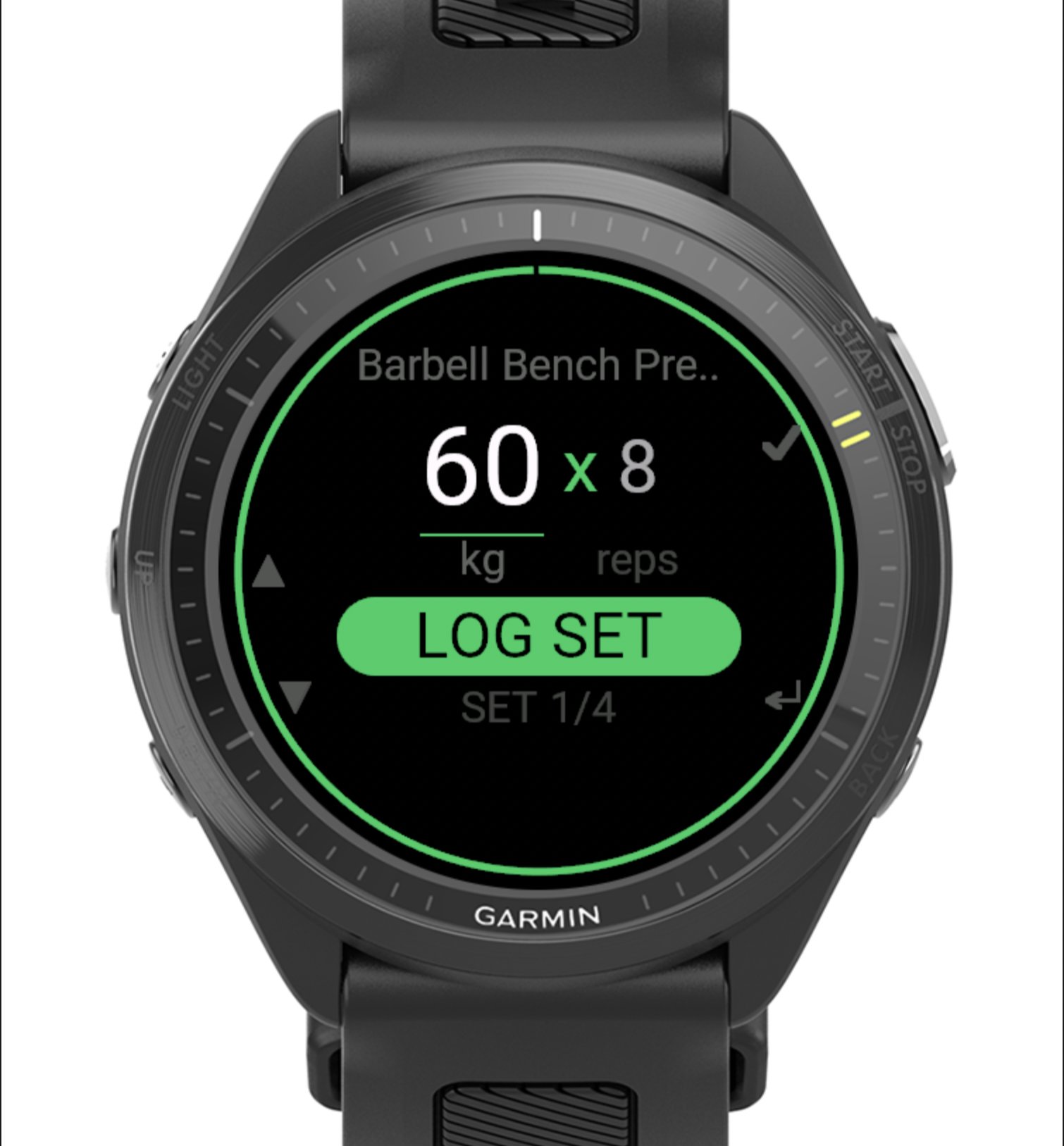
Press START/STOP to open the set-confirm stepper. Use UP and DOWN to adjust the number; each press of START/STOP moves you from weight to reps to LOG SET — press it on LOG SET to save it. The rest timer starts automatically. No phone is needed for any of this.
4. Rest Timers
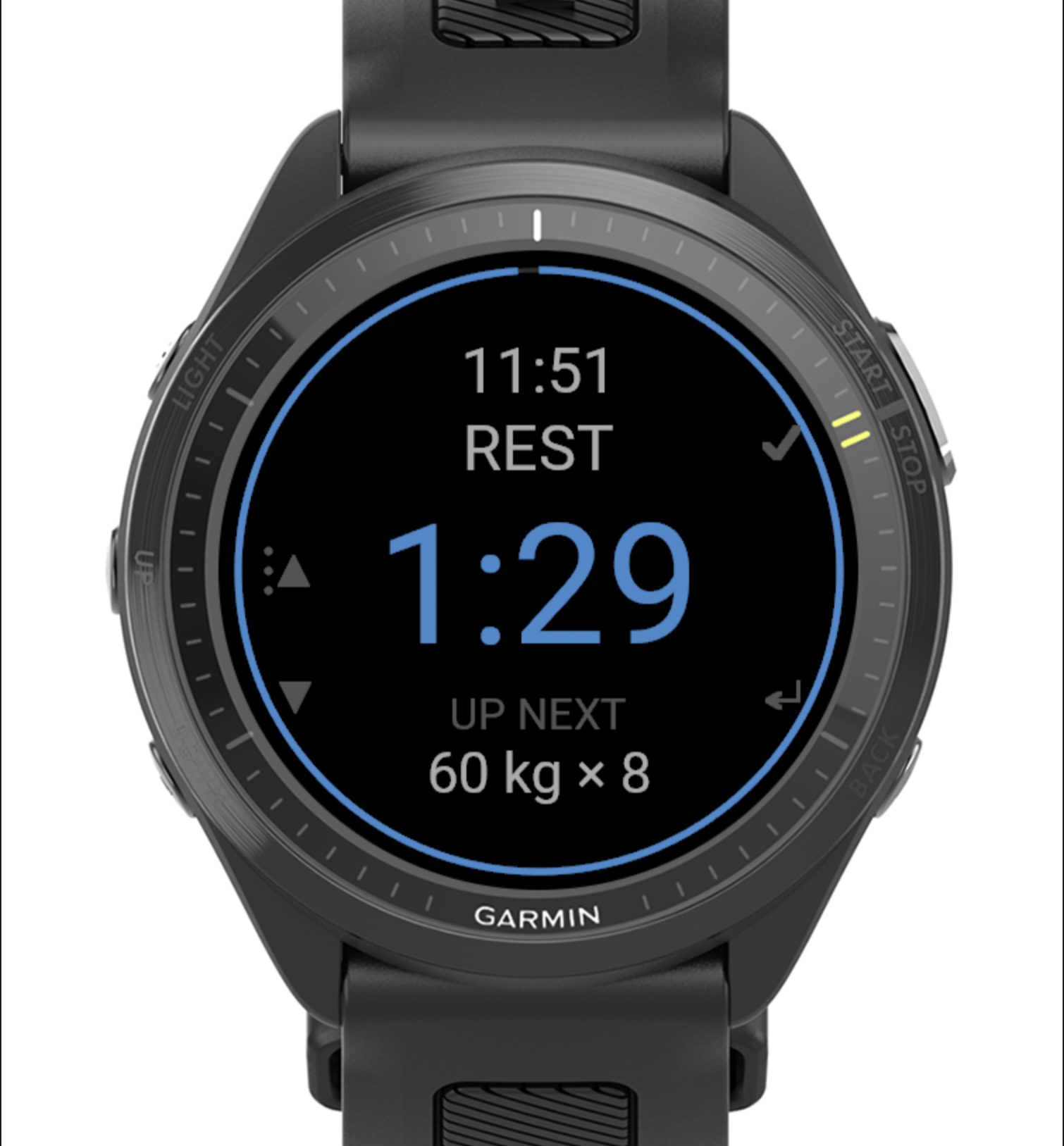
Rack handles rest automatically: a countdown runs between sets, with your next set queued below, and a count-up timer runs between exercises. Press START/STOP to skip the rest and jump to the next set early.
5. Supersets
If your routine uses supersets (exercises done back-to-back), the watch shows where you are with a label like [A] · SS 1/2 R1: [A] is the superset group, SS 1/2 is exercise 1 of 2 in that group, and R1 is round 1. Groups are lettered A through E.
![Superset label: [A] group, SS 1/2 (exercise 1 of 2), R1 (round 1)](/guides/rack-garmin-watch-guide/05-superset.png)
6. Finish Your Workout
When you’re done, hold UP to open the menu and choose End Workout. Rack saves the session on the watch right away and shows a summary — nothing is lost even if your phone isn’t around.
7. Train Offline, Then Sync
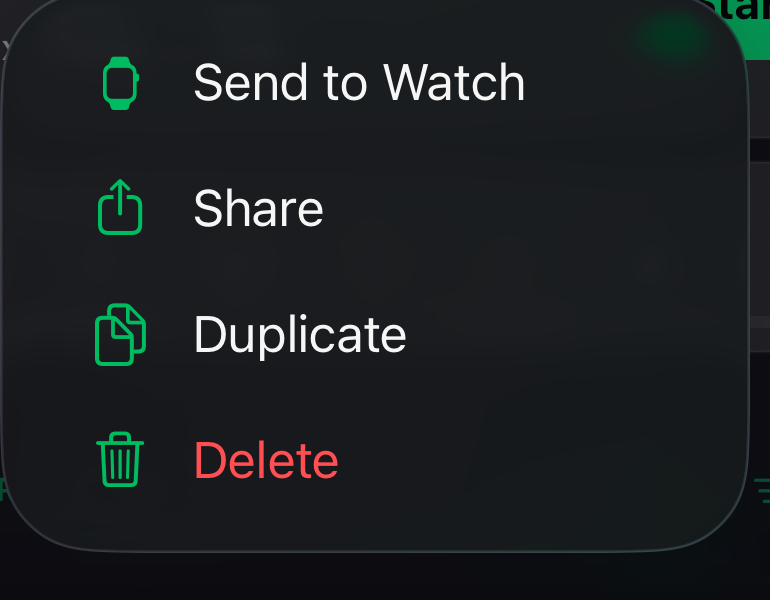
First the workout has to reach the watch, and most of the time it already has. Whenever you open Rack on the watch with your phone in range, the routine scheduled for that day is sent across on its own. To load any other routine, open the Routines tab on your phone, press and hold the routine, and choose Send to Watch. That option needs the watch connected at that moment, so it is greyed out when the link is down. The watch holds up to ten routines at a time.
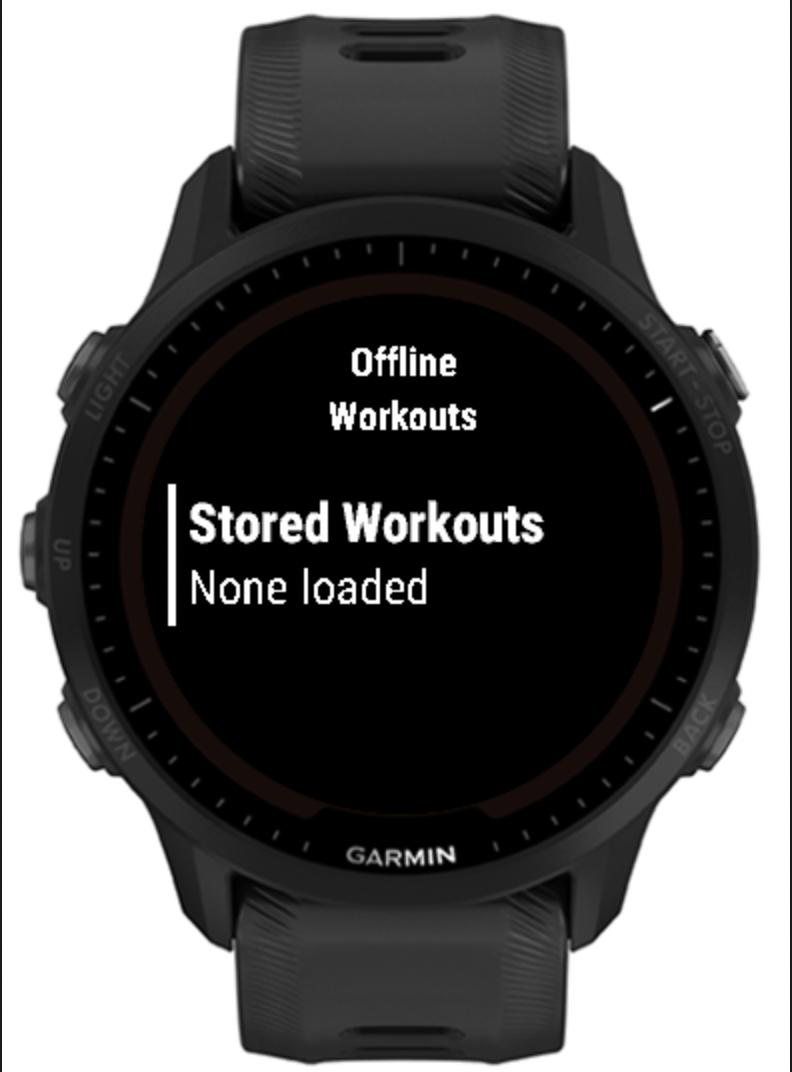
On the watch they live under Offline Workouts → Stored Workouts, which reads None loaded until something arrives. Pick one, press Start Workout, and the watch runs the whole session by itself. Your phone can stay in your bag.
When you’re back in range, open Offline Workouts → Sync to Phone and the watch uploads everything to your iPhone, which owns your history and export. Your data is safe on the watch until it syncs, so a dead-zone gym is never a problem.
If Something Looks Off
- Rack isn’t on the watch after downloading: Connect IQ syncs over Bluetooth and can take a minute. Keep your phone nearby with Garmin Connect open; if it still doesn’t appear, open Garmin Connect → your device → Connect IQ Apps to confirm it installed.
- “Program” is empty:you haven’t created a routine yet, or it hasn’t synced. Build one in the Rack phone app, then re-open Rack on the watch — or use Offline Workouts to lift right now.
- Watch says “Not Connected”: that only affects live phone sync. You can still log the whole workout; it saves on the watch and uploads later. This is normal in a basement gym.
- Sync did nothing: make sure your phone is nearby with Bluetooth on and the Rack phone app open, then choose Sync to Phone again.
Rack supports 40+ Garmin devices, from Forerunner and Fenix to Epix, Venu, Instinct, and Enduro. Lighter-memory watches like the Instinct 3 Solar run a trimmed-down UI, but the logging flow is the same everywhere.