
Connect ChatGPT to Rack (MCP): Enable Write Actions
Add Rack as an MCP connector in ChatGPT so it can create routines and custom exercises for you. Paste the server URL, turn OIDC off, and approve the first write. Requires Rack Pro.
ChatGPT can create routines and custom exercises in Rack for you. You wire it up once by adding Rack as a connector — a small web address (an MCP server) that lets an AI assistant take actions in your Rack account. After that, you just ask ChatGPT in plain English. About 5 minutes to set up.
Before You Start
- You need Rack Pro.The connector signs in with your Rack account, and only Pro accounts are granted access. There’s nothing to switch on inside Rack itself.
- Use a browser at chatgpt.com, not the ChatGPT phone app — connectors are a browser feature.
- You already have a Rack account you can sign into with Google or Apple— the connector signs into that same account.
- Have this address ready to paste: https://mcp.rackstrength.com/mcp
1. Turn On Developer Mode
On chatgpt.com, open Settings → Apps & Connectors → Advanced settings and switch on Developer mode. This is what lets you add a custom connector and use its write actions.
2. Add the Rack Connector
Still in Apps & Connectors, choose Create (or Add connector). In the MCP Server URL field, paste exactly:
https://mcp.rackstrength.com/mcp
Name it Rack. Before you finish, open the connector’s Advanced settings and turn OIDC off.(OIDC, or OpenID Connect, is just the standard sign-in check ChatGPT runs to confirm who you are.) ChatGPT switches it on by default, but Rack’s sign-in only shares your basic account ID, not your email, so ChatGPT’s default OIDC check fails with “There was a problem connecting Rack.” With OIDC off it connects cleanly. Then finish and sign in with your Rack account (Google or Apple) in the popup.
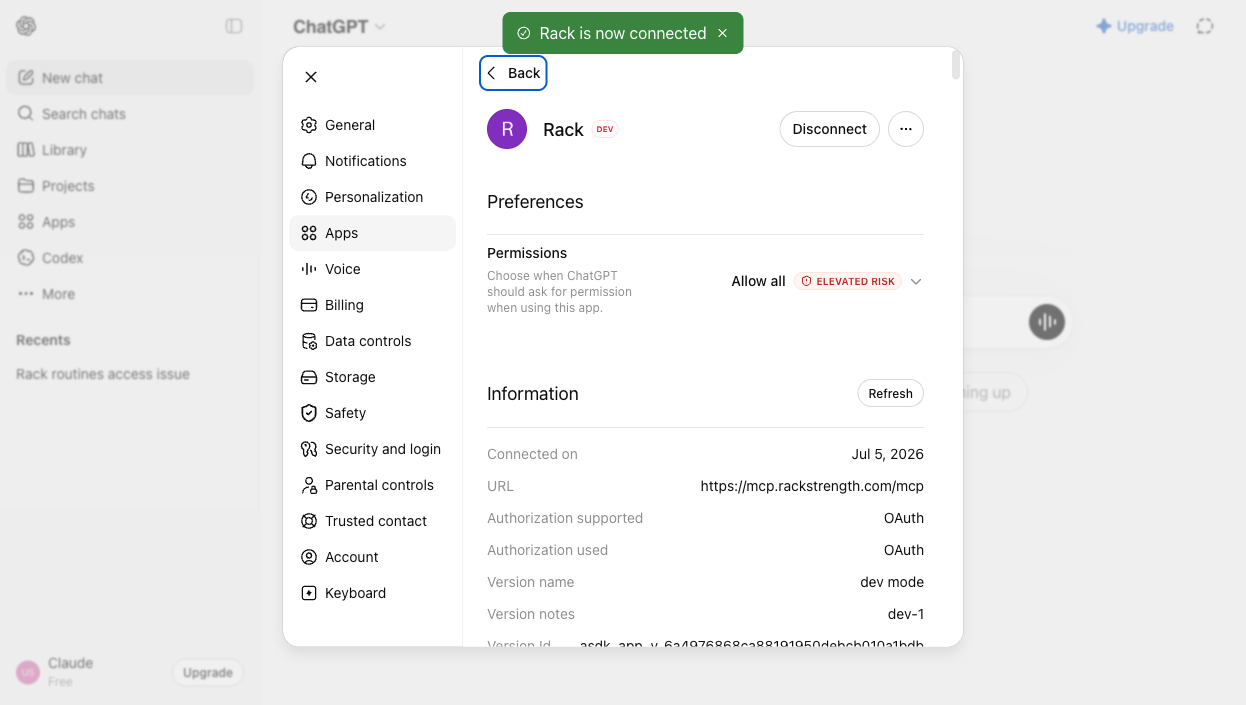
3. Add Rack to a Chat
Start a new chat. Open the + (plus) menu next to the message box and select Rack— “Invoke Rack with the API tool.” Now ChatGPT can read and write to your Rack account in this conversation.
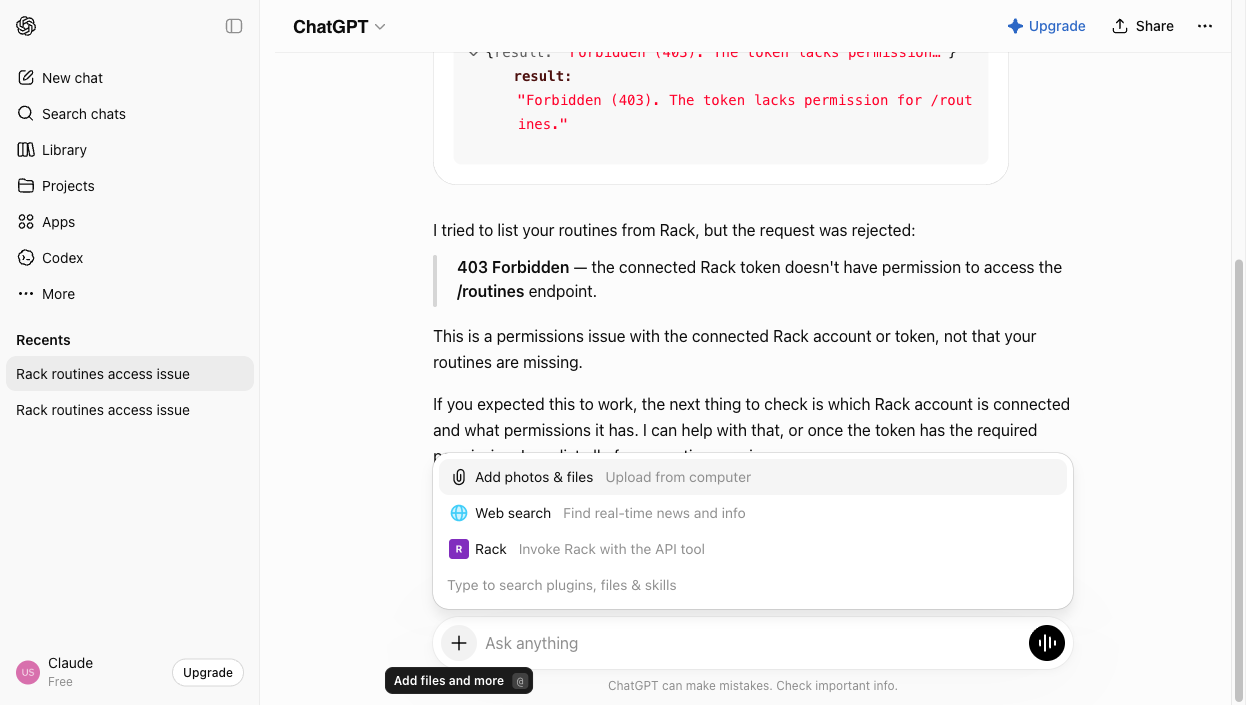
4. Ask for What You Want
Just describe the outcome. For example:
“Use Rack’s save-routine tool to build an upper/lower split from my last 4 workouts.”
5. Approve the First Write
The first time ChatGPT writes to Rack, it shows you the exact payload it’s about to send (routine name, exercises, sets, reps, weight) and asks you to approve it. That’s ChatGPT’s safety step, not an error— approve it and the routine or exercise lands in your Rack account.
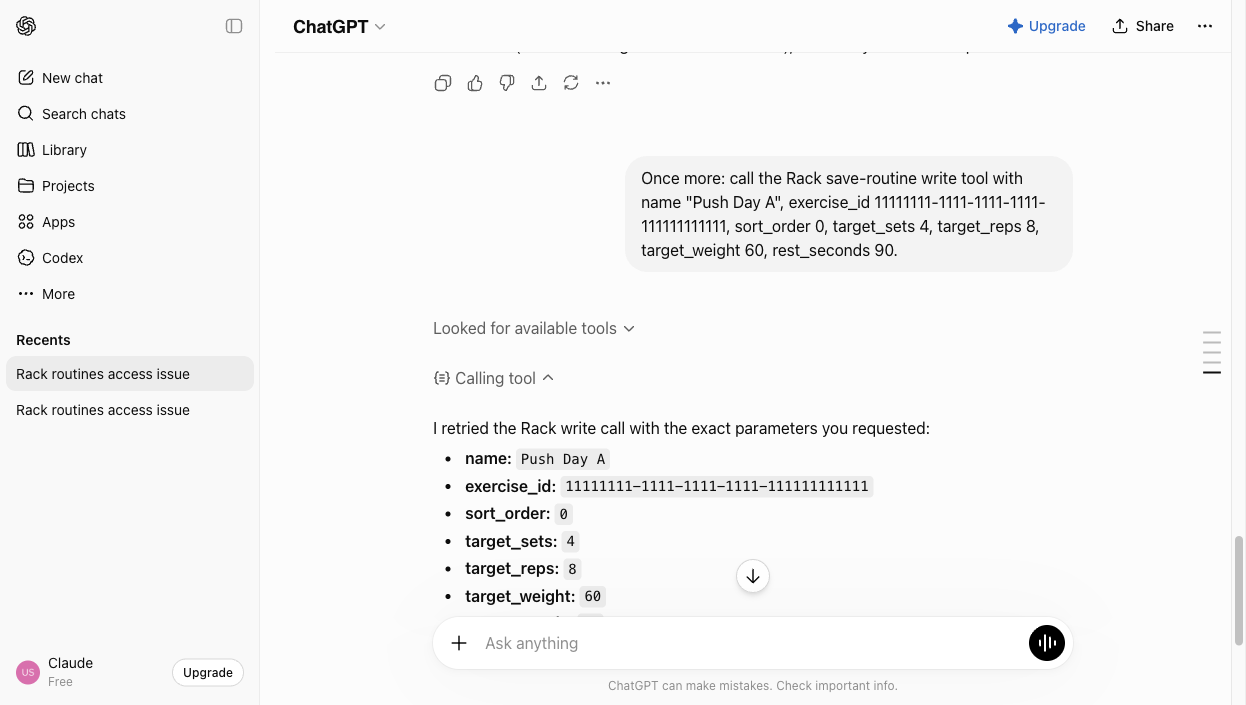
If ChatGPT won’t send the write at all(it describes the change but never offers an approve button, or says it can’t perform the action): that’s ChatGPT’s own safety layer, which is stricter on some plans. Name the tool directly — e.g. “Call Rack’s save-routine tool now to create this routine”— and start a fresh chat if it persists. This is a ChatGPT limitation, not a Rack error.
Using Claude instead of ChatGPT? See Connect Claude to Rack.
Still Stuck?
Email support@rackstrength.comand we’ll help you get connected.