
Tune Your App to Your Preferences
A tour of the settings worth knowing: weight unit (kg or lbs), appearance, progression rules and training maxes, plus the toggles for Training Intelligence, Apple Health, and Garmin.
Rack works out of the box, but a minute in Settings makes it yours: the right units, the right look, and the coaching behavior you want. This is a tour of the settings worth knowing on the iPhone app. About 3 minutes.
Where Settings Lives
Tap the Profile tab (bottom-right), then Settings(the gear). Settings is organized into collapsible sections — tap a heading to expand it.
Weight Unit (kg or lbs)
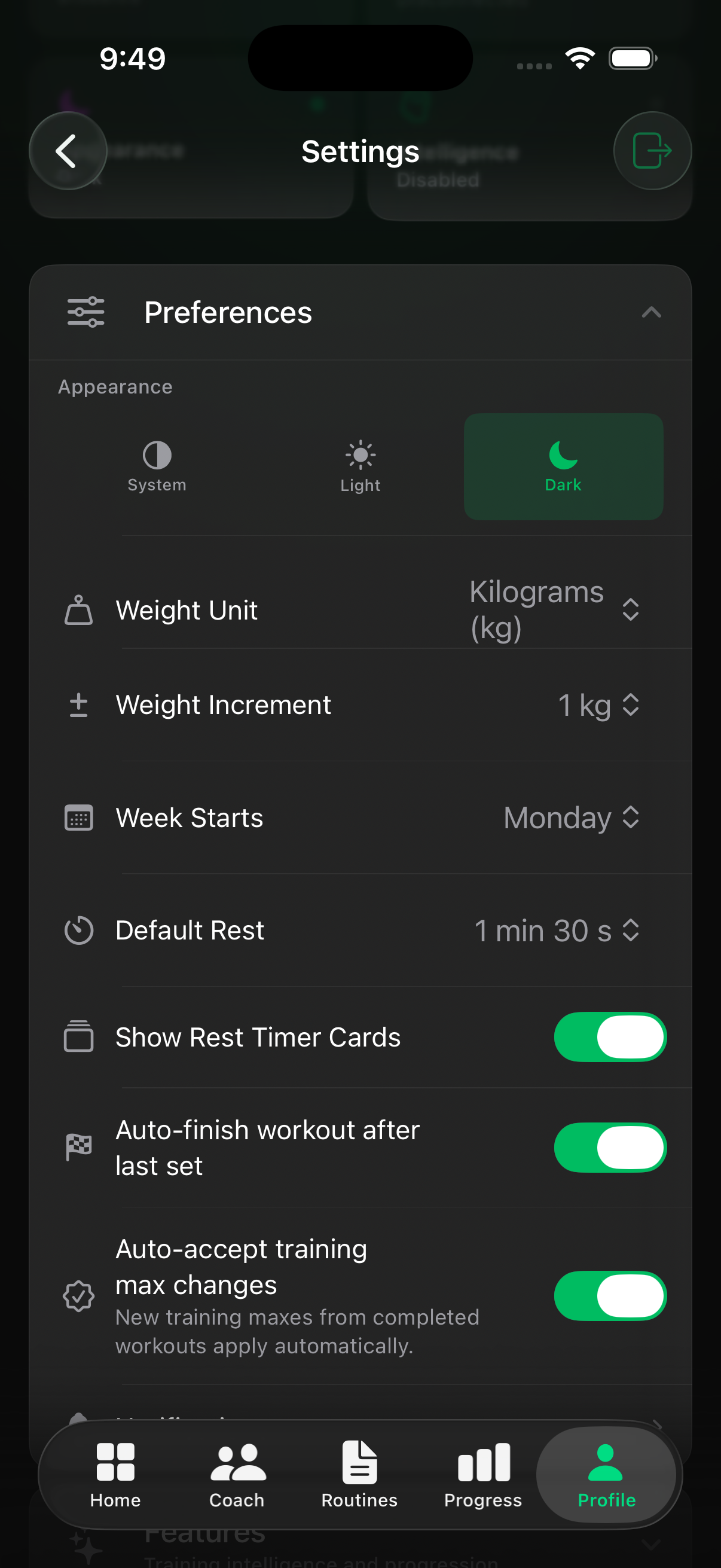
Open Preferences and tap Weight Unit. Pick kg or lbs. This is the single source of truth for the whole ecosystem — the web app and your Garmin watch follow it — so set it once here and everything matches.
Appearance
Still under Preferences, Appearance switches between Light, Dark, and System (follows your iPhone). Your display namelives here too — it’s what shows on your profile and, if you train with a coach, what they see.
Training Behavior
Tap Featuresto expand it — this is where Rack’s coaching logic lives. Tap any row to open it; each is safe to leave on its default if you’re just getting started.
- Progression rules— tap in and choose how Rack suggests your next weight and reps as you get stronger (for example, add weight once you hit the top of your rep range). Not sure? Leave the default on.
- Training maxes— a “training max” is a reference number (usually about 90% of your best lift) that percentage-based programs build off. Only needed if your program uses percentages; skip it otherwise.
- Notifications— tap to turn rest-timer alerts and reminders on or off. On first use iOS asks permission — approve it or these stay silent.
Seeing a row grayed out or locked? Training Intelligence and some coaching options require Rack Pro— the row itself will say so.
Turn On the Extras
A few toggles unlock the parts of Rack that talk to the rest of your training:
- Training Intelligence(Pro) — Rack’s AI coaching. Flipping it on shows a short consent step, then it starts tailoring suggestions to your history.
- Apple Health— writes your workouts to the Health app (and reads what it needs). Toggle it on and approve the iOS permission prompt.
- Garmin — connects your watch and, separately, Garmin Connect so finished workouts auto-upload to your activity feed. Full walkthrough: Pair Your Garmin.
Still Stuck?
Email support@rackstrength.comand we’ll point you to the right setting.